
A keystore is the quiet part of publishing an Android app. Nobody sees it, nobody thanks you for it, and the day you lose it you wish you had spent ten minutes on it. This guide shows how to create one on your phone, sign an AAB with it, back it up properly, and avoid the mistakes that block updates.
Part 1: What a keystore is
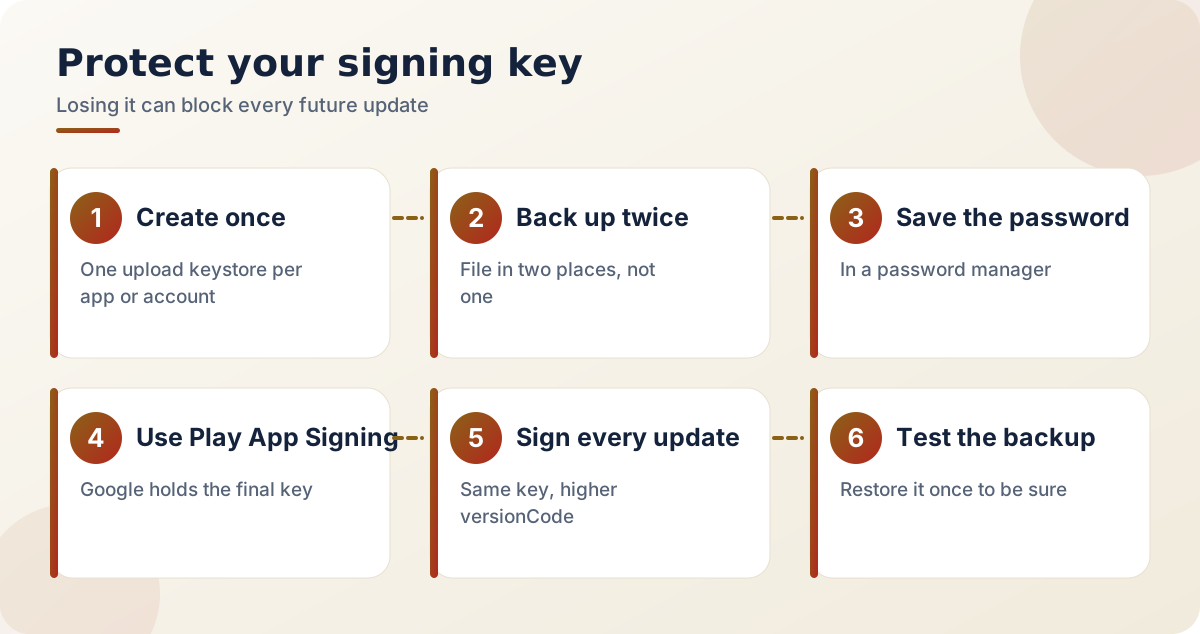
A keystore is a file that holds the private key used to sign your app. Every update must be signed by the same key, so the keystore is effectively your app's identity. If you lose it, you may not be able to update the app in the way you expect, so treat it carefully. Google's signing documentation explains how upload keys and Play App Signing work together.
Part 2: Create the keystore on your phone
- Open the keystore maker in App Signer Pro.
- Choose PKCS12 as the format.
- Pick an alias, a short name for the key, for example upload.
- Set a long, unique password and save it in a password manager.
- Set validity to at least 25 years.
- Fill in your details: your name or organisation, and country.
Part 3: Back it up straight away
Copy the keystore file to at least two safe places, such as an encrypted cloud folder and an offline drive, and store the passwords separately from the file.
Part 4: Sign the AAB
Open the signing section, choose your AAB, select the keystore, then enter the alias and passwords. The tool creates a signed bundle. If you also want to test the app on a phone, you can convert the AAB to an installable APK.
Part 5: Upload and verify
Upload the signed bundle to your release track in Play Console. If the upload is rejected, read the message: a different upload key from the one registered is the most common reason. Use the inspect tool to look at the signature details of any bundle before you upload it.
| Problem | Likely cause |
|---|---|
| Signature does not match | A different upload key from the one registered |
| Keystore will not open | Wrong password or alias |
| Lost the file | Use Play Console's upload key reset process |
Part 6: Good habits
Use one clear naming scheme for keystores, keep a short private note of which app uses which, and test the whole process on a throwaway app before doing it for a real release.
Frequently asked questions
What if I lose the keystore?
If you use Play App Signing, you can ask Google to reset your upload key through Play Console. Without it, you may not be able to update the app, so back up early.
Can one keystore sign many apps?
It can, but a lost or leaked file then affects all of them. Many developers use one per app or per account.
Is PKCS12 or JKS better?
PKCS12 is the modern default format and is the one I recommend.
Where should I keep the password?
In a password manager, never in the same folder as the keystore.
Can I create and sign with command-line tools instead?
Yes. keytool creates the keystore and jarsigner can sign the bundle, preferably with SHA-256. The Generate Signed Bundle wizard in Android Studio does the same through a form.
What happens to my keystore with Play App Signing?
Google keeps the final app signing key and your keystore becomes the upload key, which can be reset through Play Console if you lose it.
Related reading
- How to publish your first Android app on Google Play: where your upload key is used
- How to convert an AAB to an installable APK on your phone: turning a bundle into an installable file
Official resources:
Ten minutes spent on a keystore now saves you from a very bad afternoon later.